Family App
How to use the Family App
Everything for your classes in one place: reminders, absences and make-ups, receipts, and music to enjoy at home. Here’s how to get started.
Before your first class
Get set up in 3 steps
Step 1
Sign in with your email
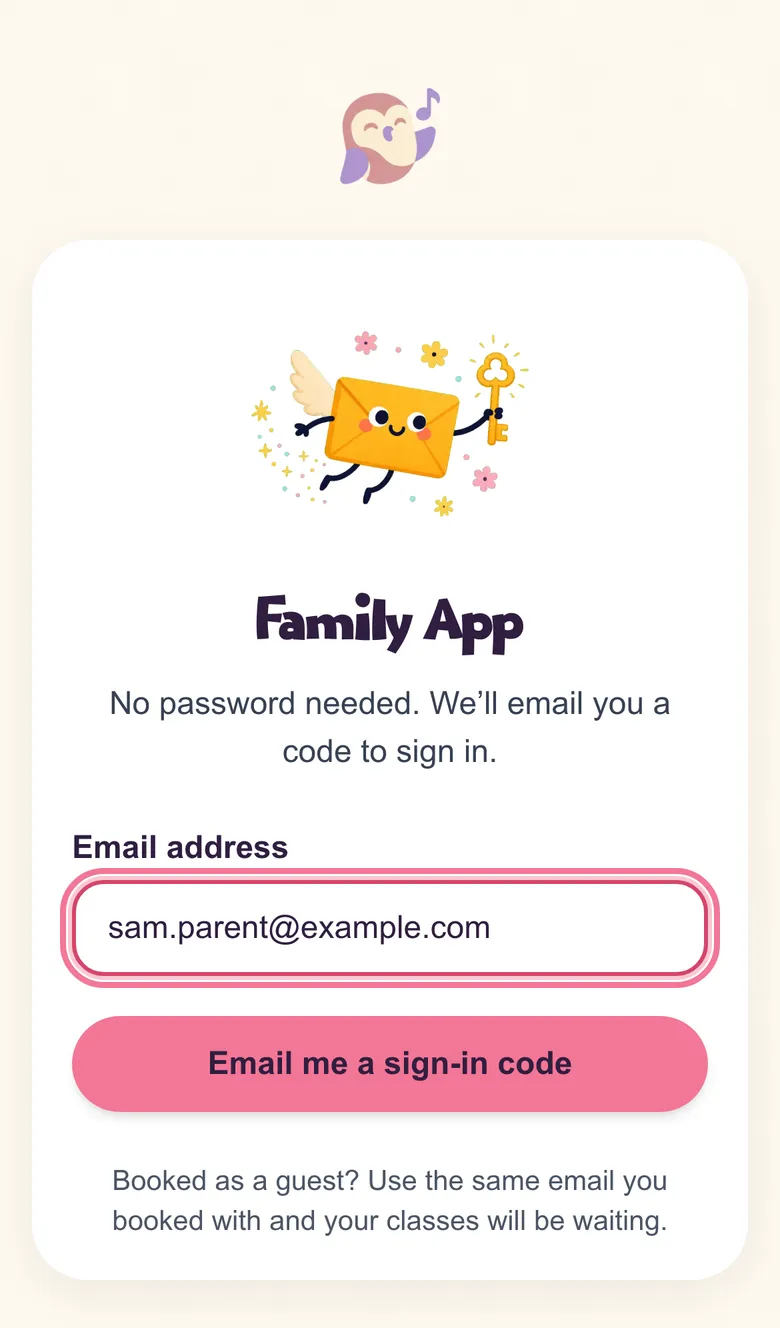
Go to cuddleandsing.com.au/portal, or tap the Family App button in your booking confirmation email.
Enter the email you booked with and tap Email me a sign-in code. Type in the code from the email, or tap the button in it. There’s no password to remember.
Tip: Use the same email you booked with and your classes will be waiting for you.
Step 2
Add the app to your home screen
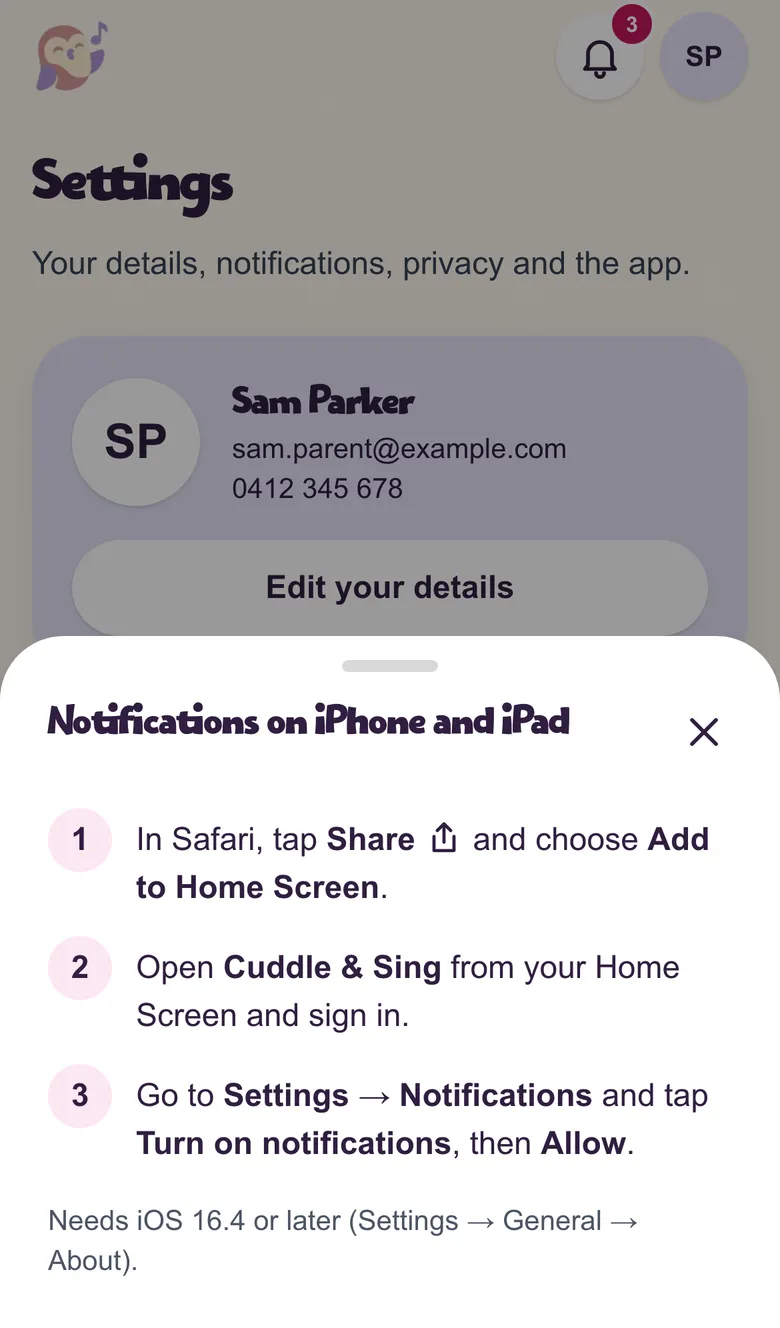
iPhone or iPad: open the Family App in Safari, tap the Share button, then Add to Home Screen and Add.
Android: open your browser’s menu (⋮), choose Install app or Add to Home screen, then confirm.
Cuddle & Sing now opens full screen from your home screen, like any other app. No app store needed.
Step 3
Turn on class reminders
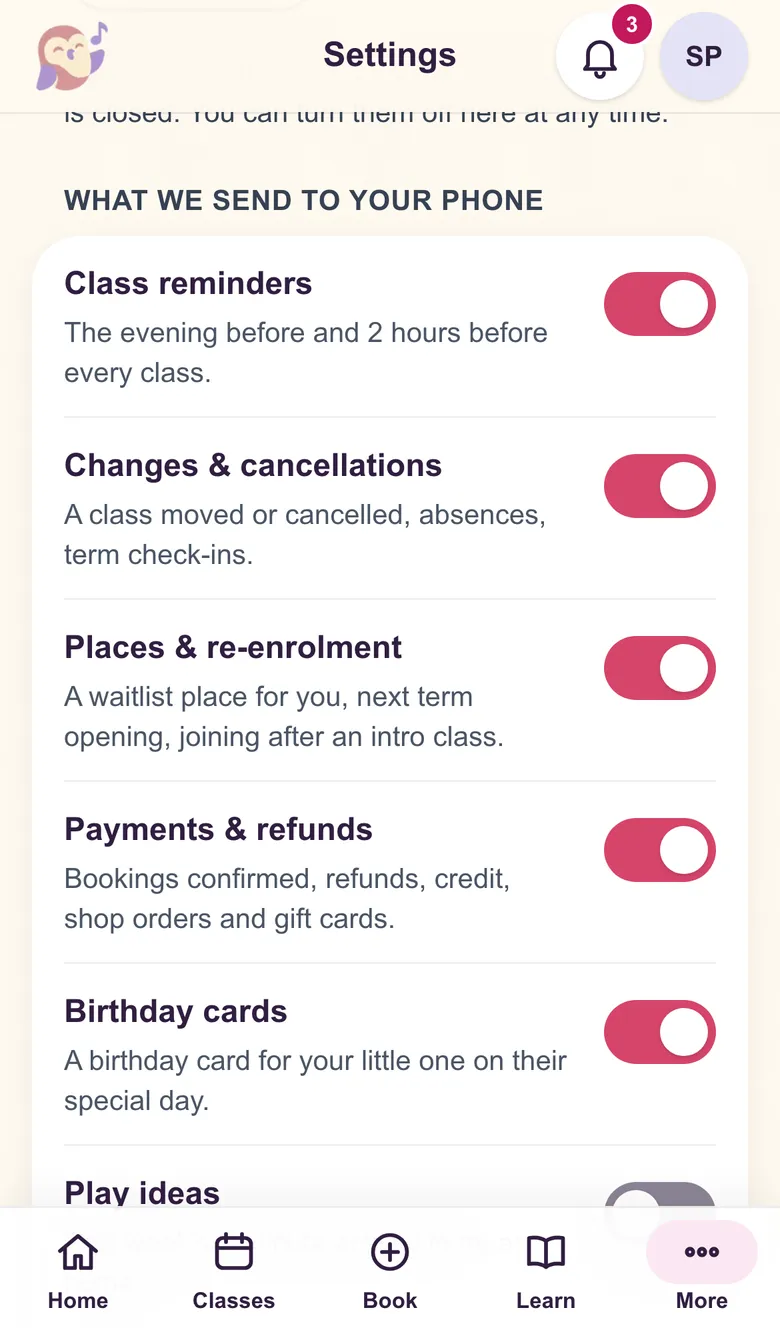
Open Cuddle & Sing from your home screen, go to Settings and tap Turn on notifications, then Allow.
You’ll get a reminder the evening before and 2 hours before each class, plus any same-day changes and waitlist places. Choose what you’d like in Settings.
Tip: On iPhone, notifications need iOS 16.4 or later and the app added to your home screen first.
Every week
Your classes
Step 4
Your next class at a glance
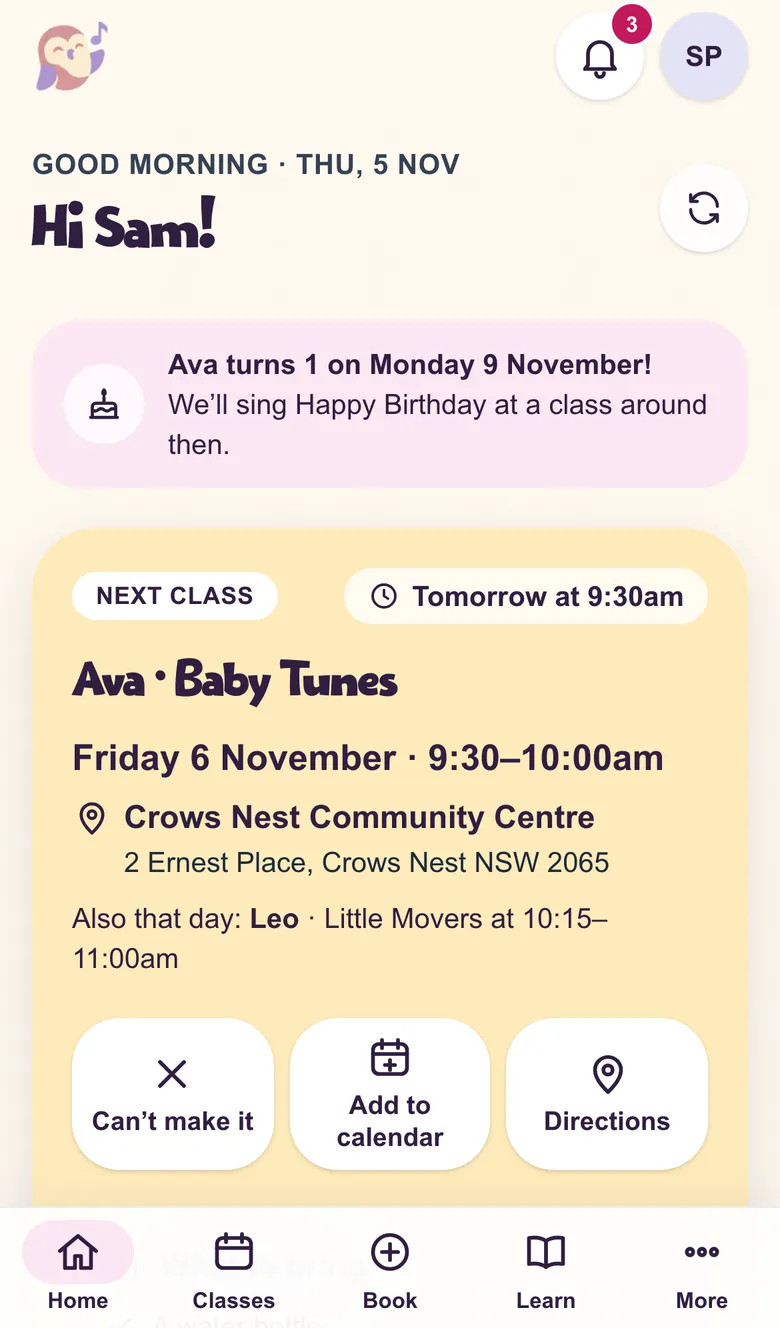
Home shows your next class: who it’s for, the day and time, and the venue.
Tap Add to calendar to save every class to your phone’s calendar, or Directions for the map. What to bring is right underneath.
Step 5
Can’t make it? Tell us in the app
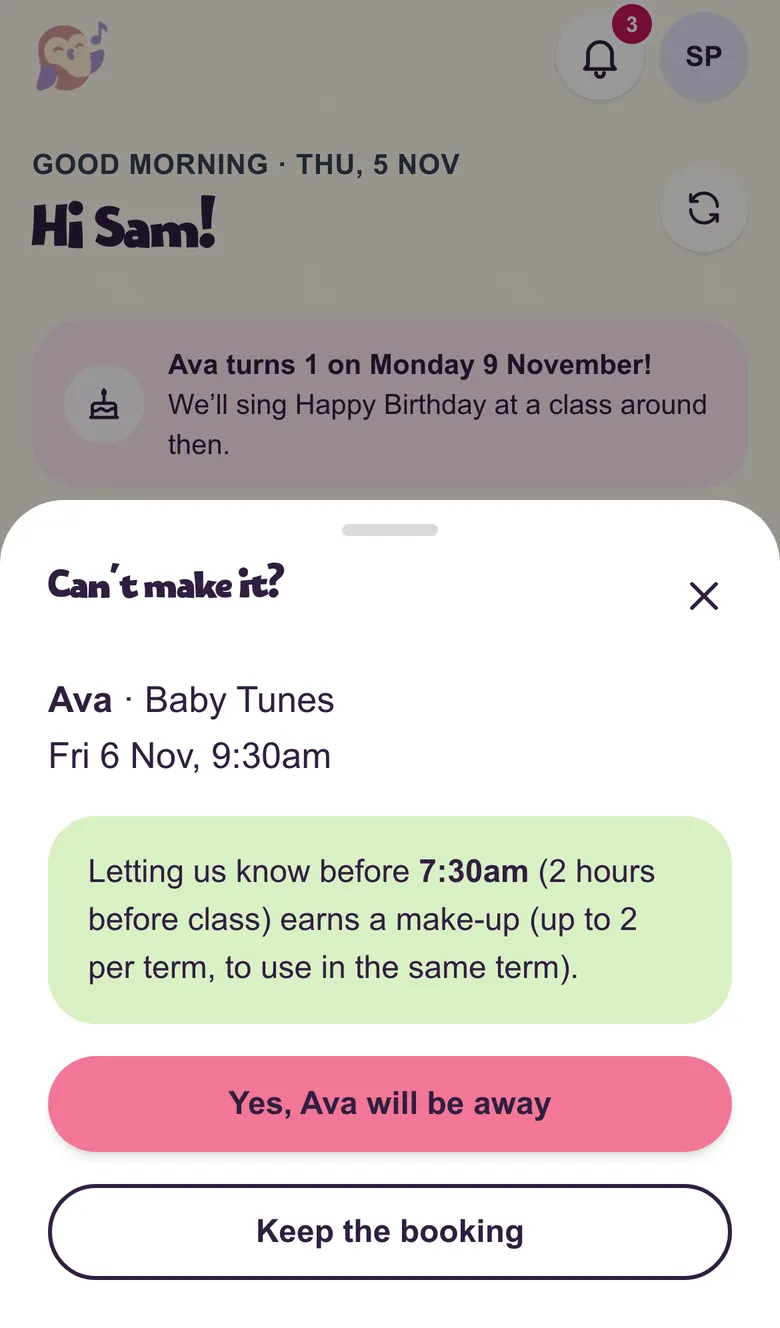
Tap Can’t make it on the class, then confirm. Let us know at least 2 hours before and you’ll get a make-up class (up to 2 per term).
With less than 2 hours’ notice we can’t offer a make-up, but please still tell us. It helps us plan the class.
Step 6
Book a make-up
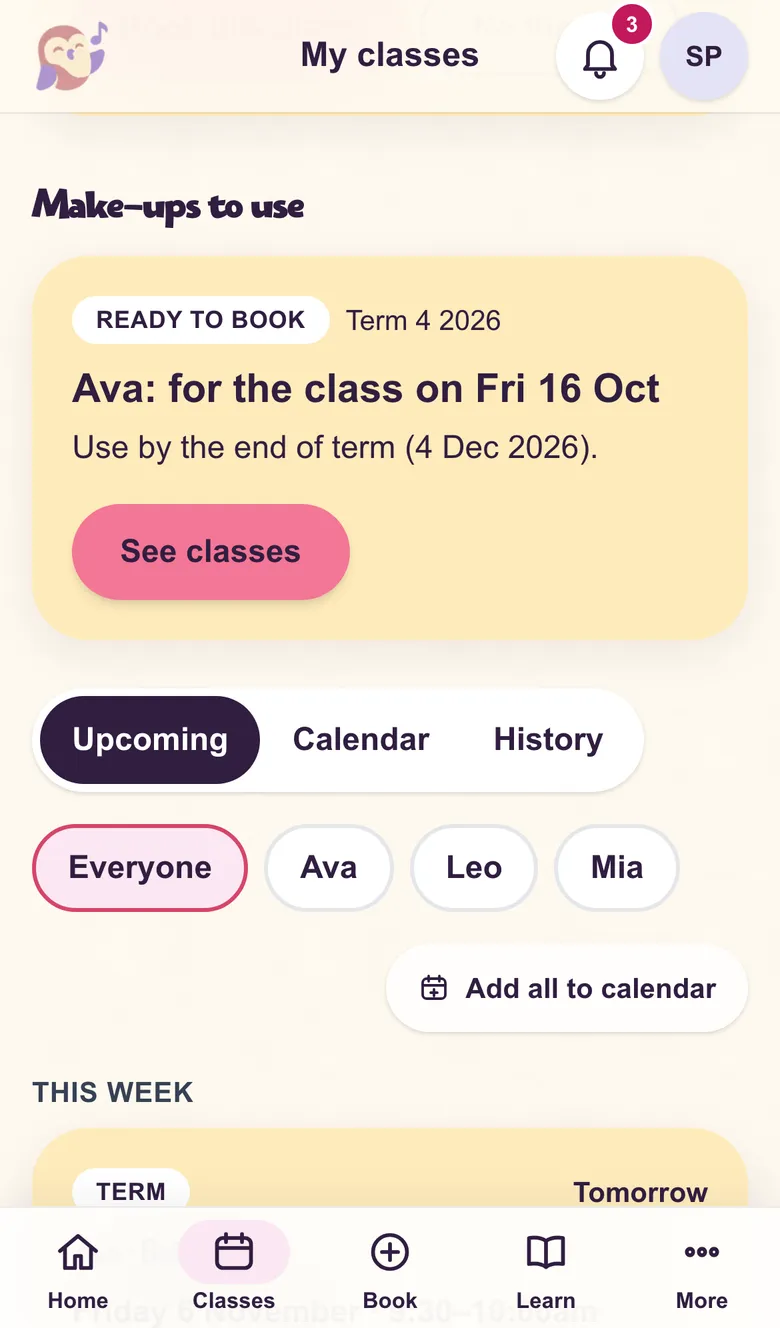
Go to Classes. Under Make-ups to use, tap Book a make-up and choose a class with a free place: your child’s own age group, or the one next to it when it suits their age.
Make-ups are used in the same term. Need to cancel one? Do it at least 24 hours before and you can use it again.
At home
Keep the music going
Step 7
Play & learn
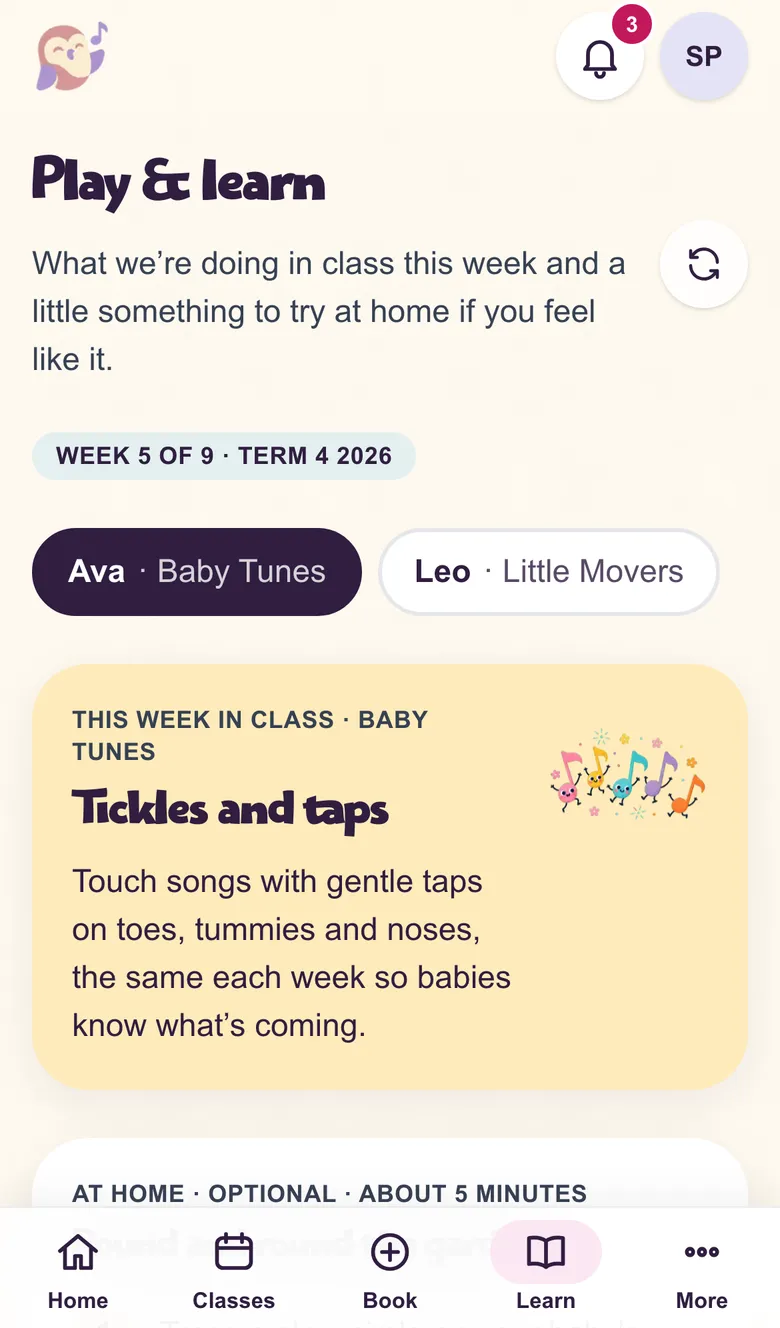
See what we’re doing in class this week, and a little something to try at home if you feel like it (about 5 minutes).
Tap Done when you’ve tried it, so you can see what you’ve done each week.
Step 8
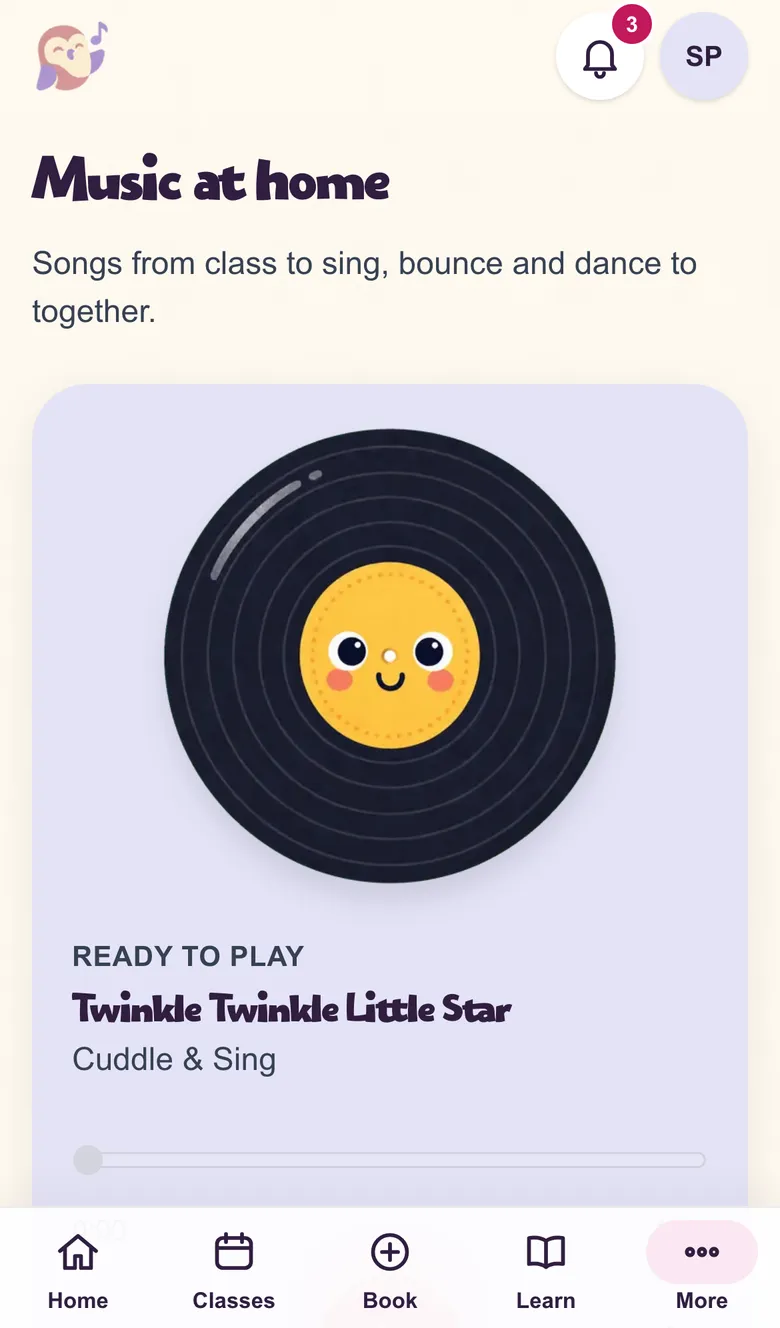
Music at home
Play the songs from class to sing, bounce and dance to together, including sleepy versions for bedtime. Songs you’ve played also work offline.
Your account
Family, payments and more
Step 9
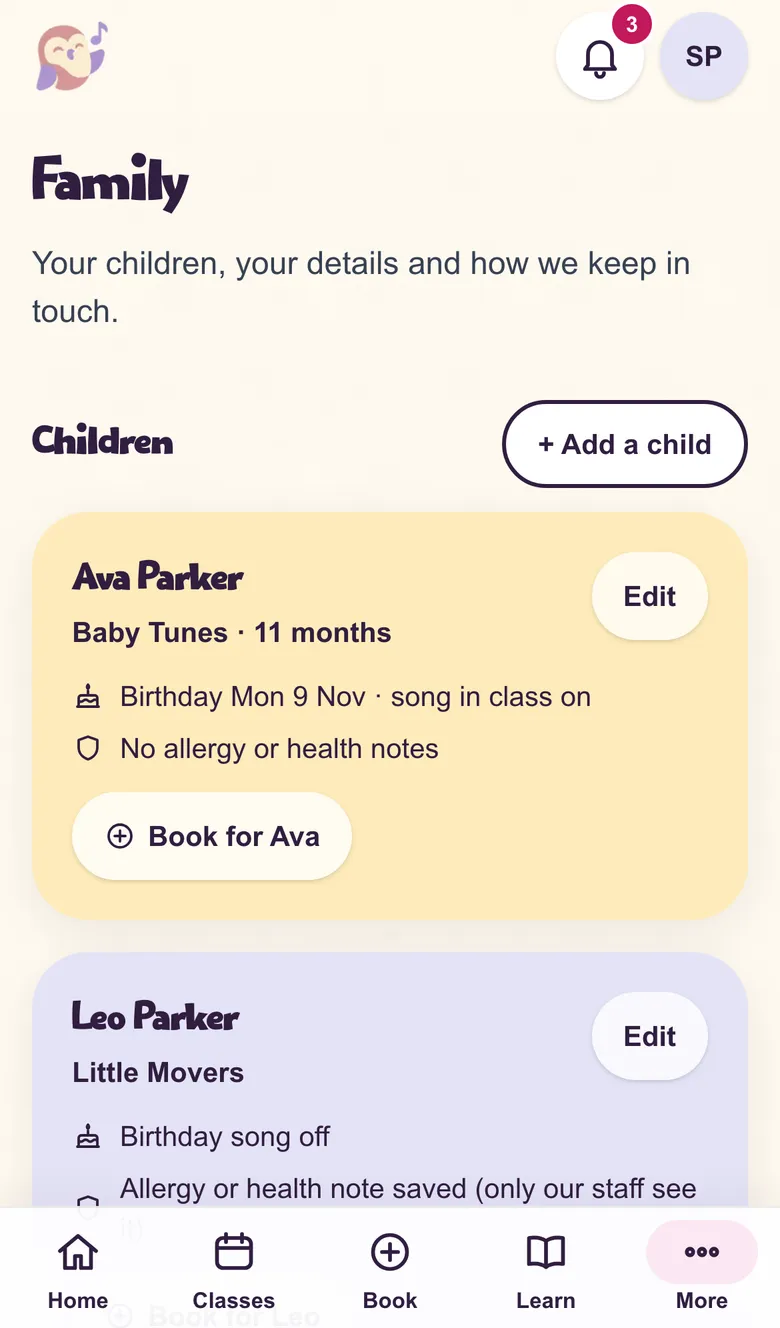
Your family
Add or edit your children, and save any allergy or health notes. Only our staff see them.
Invite a partner, grandparent or carer under Family sharing. They sign in with their own email.
Step 10
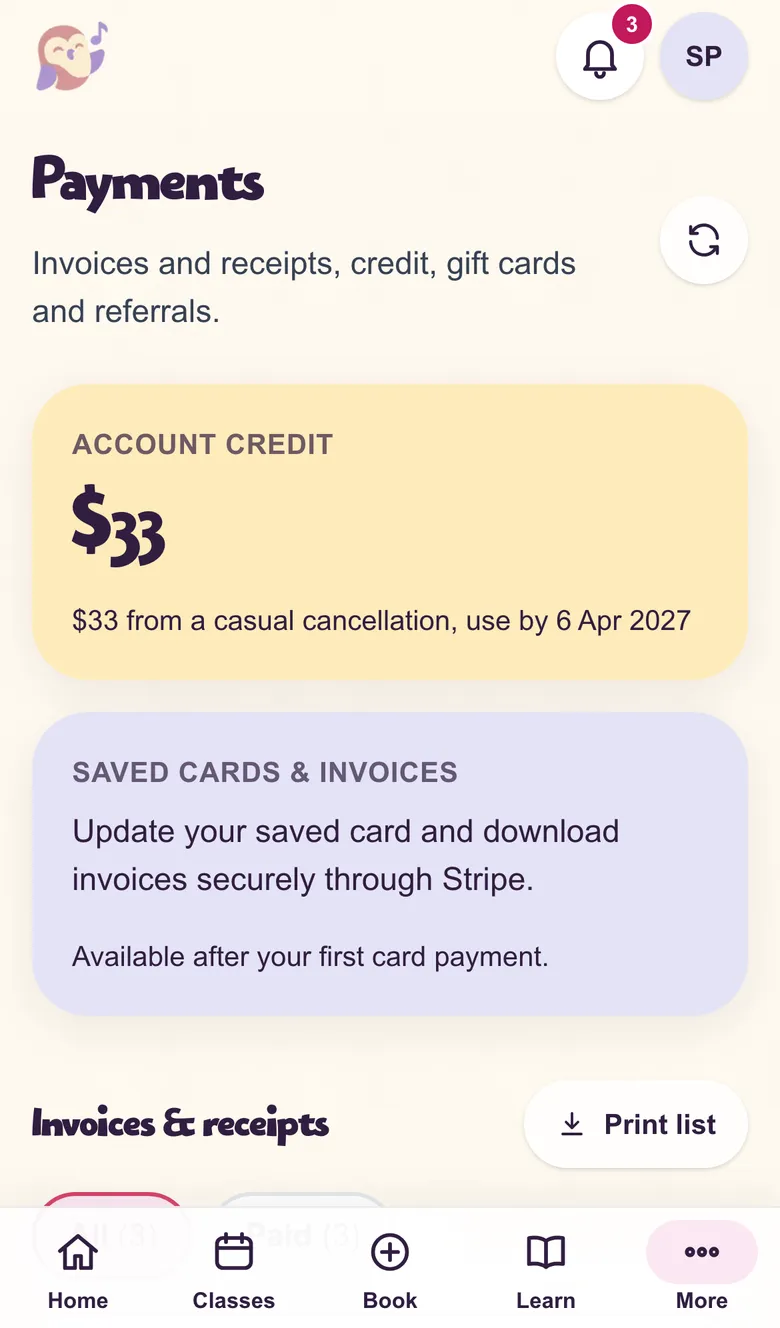
Payments and receipts
Find every receipt, any account credit or gift card balance, and update your saved card securely through Stripe.
Step 11
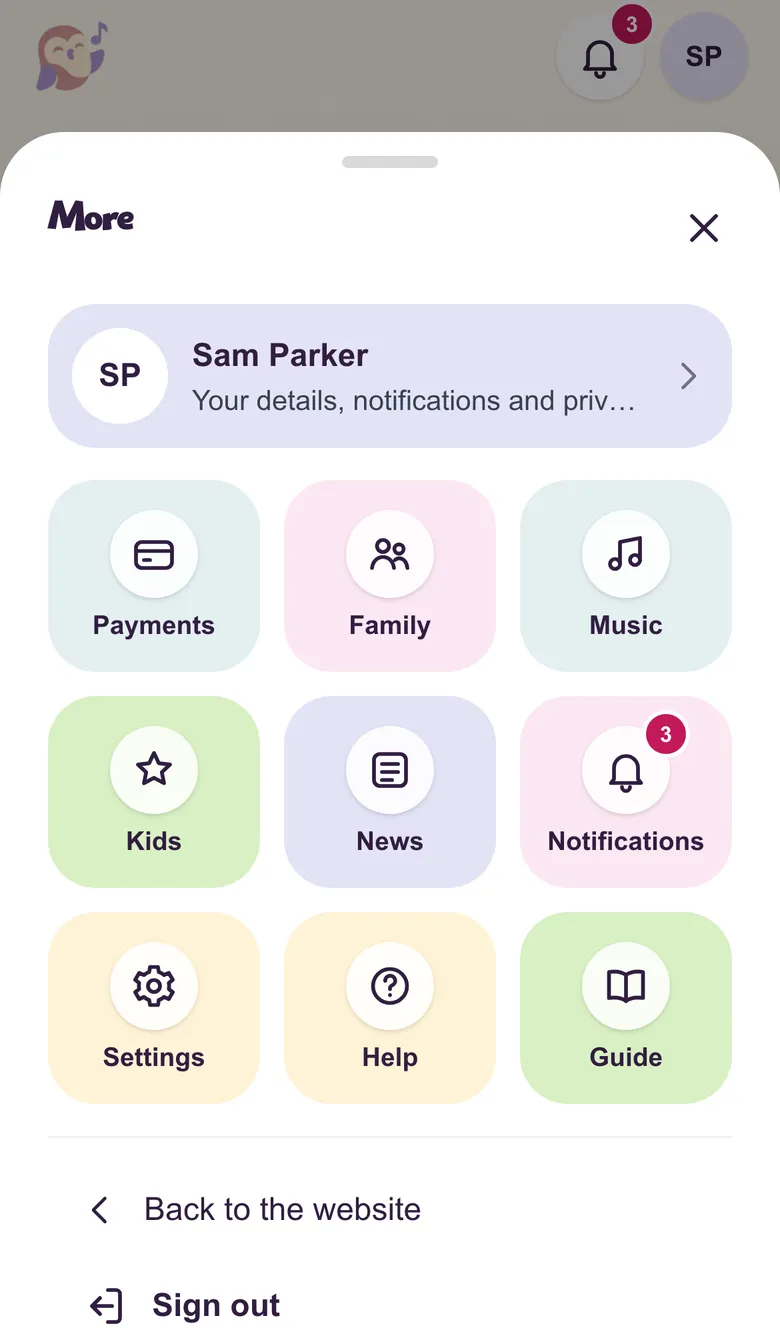
Everything else
Tap More at the bottom of the screen for music, games for little ones, news, notifications, settings and help.
Need a hand?
We’re here to help
Can’t sign in, or something doesn’t look right? Email us at help@cuddleandsing.com.au and we’ll sort it out.